What is a CPU Fan Error and Why Does It Matter?
A "Cpu Fan Error" message during your computer's startup can be a perplexing and concerning alert. This critical warning, often appearing as a text message on your screen or sometimes as a series of beep codes, indicates that your motherboard isn't correctly detecting the CPU cooling fan or its rotational speed. While it might seem like a minor hiccup, ignoring a
Cpu Fan Error is akin to ignoring a smoke alarm – it signals a potentially serious problem that could lead to catastrophic consequences for your PC.
The central processing unit (CPU) is the "brain" of your computer, generating significant heat during operation. The CPU fan, often paired with a heatsink, is responsible for dissipating this heat, keeping the CPU at safe operating temperatures. If the fan isn't spinning, is spinning too slowly, or isn't detected, the CPU can quickly overheat. This can trigger automatic system shutdowns to prevent permanent damage, lead to instability, performance throttling, and in severe cases, permanently damage your CPU or motherboard. Understanding the root causes, which often stem from hardware malfunctions, loose connections, or incorrect firmware configurations, is the first step toward effective troubleshooting and ensuring your system remains stable and performs optimally.
Initial Troubleshooting Steps: The Physical Check
Before diving into complex software or firmware adjustments, the most logical and often effective starting point for any
Cpu Fan Error is a thorough physical inspection of your computer's cooling components. Many errors are simply due to a loose cable or accumulated dust.
Power Down and Open the Case Safely
Safety first! Always begin by completely shutting down your computer, unplugging it from the wall outlet, and disconnecting any peripherals. This prevents electrical shock and potential damage to components. If you're unfamiliar with your computer's internal layout, consult your PC or motherboard manual for specific instructions on how to safely open the case. Typically, this involves removing a side panel held by screws. It's also wise to touch an unpainted metal surface on your case before touching internal components to discharge any static electricity that could harm sensitive electronics.
Inspect the CPU Fan Connection
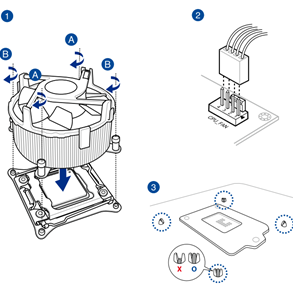
Once the case is open, locate your CPU and its accompanying fan. The fan will have a cable running from it to a header on the motherboard. This is where most issues arise.
- Verify the Header: Ensure the CPU fan cable is securely plugged into the correct motherboard header. Look for a label like "CPU_FAN". It's surprisingly common for users to mistakenly plug the CPU fan into a "CHA_FAN" (chassis fan) or "SYS_FAN" header, which might not be monitored by the BIOS as strictly, thus triggering a Cpu Fan Error.
- Secure Connection: Gently push on the connector to confirm it's seated firmly. A loose connection can prevent the motherboard from detecting the fan's RPMs.
- Cable Condition: Check the cable itself for any signs of fraying, cuts, or pinched wires. Damaged cables can prevent power or signal transmission.
Check Fan Blades and Functionality
A fan must not only be connected but also functional.
- Debris and Dust: Over time, dust can accumulate heavily on fan blades and heatsink fins, impeding airflow and even preventing the fan from spinning properly. Use compressed air (holding the fan blades to prevent over-spinning) to clean out any dust buildup.
- Physical Obstructions: Look for any cables or other components that might be physically obstructing the fan blades from rotating freely.
- Manual Spin Test: With the power off, gently try to spin the fan blades with your finger. They should rotate smoothly and freely without any grinding noises or excessive resistance. If it feels stiff, noisy, or doesn't spin easily, the fan motor might be failing.
Consider a Temporary Replacement or Alternative Test
If you suspect the fan itself is faulty, the most definitive test is to temporarily swap it out. If you have a spare, known-good CPU fan, install it and see if the error persists. If the error disappears, you've identified a faulty fan, and a replacement is necessary. Alternatively, some modern motherboards or CPU coolers include diagnostic LEDs that can indicate specific component failures.
Diving Into BIOS/UEFI Settings: Firmware Solutions
Even if your physical components appear perfect, your computer's firmware—the BIOS (Basic Input/Output System) or UEFI (Unified Extensible Firmware Interface)—plays a crucial role in monitoring and controlling your CPU fan. Incorrect settings here can frequently trigger a Cpu Fan Error.
Accessing Your BIOS/UEFI
To access these settings, you'll need to restart your computer and repeatedly press a specific key during the initial boot sequence. Common keys include
Delete,
F2,
F10, or
F12, depending on your motherboard manufacturer (e.g., ASUS often uses Del or F2, HP/Dell may use F10 or F12).
Adjusting Fan Speed Control Settings
Once inside the BIOS/UEFI, navigate to the "Monitor," "Hardware Monitor," "PC Health Status," or "Fan Control" section. Here's what to look for:
- Fan Speed Monitoring: Confirm that the CPU fan speed (RPM) is being detected. If it reads 0 RPM even when the fan is clearly spinning, this points to a detection issue.
- Fan Control Mode: Many motherboards offer different fan control modes (e.g., "Standard," "Silent," "Performance," or "Manual"). Sometimes, an overly aggressive "Silent" mode might set the fan's minimum RPM too low, below the motherboard's detection threshold, triggering an error. Try setting it to "Standard" or "Performance" temporarily.
- Minimum Fan Speed Threshold: Some BIOS versions allow you to set a minimum RPM threshold. If your fan consistently spins below this threshold (perhaps due to a design peculiarity or aging fan), the BIOS might flag it as an error. You might be able to lower this threshold slightly, but proceed with caution as this could reduce cooling effectiveness.
- CPU Fan Warning: Many motherboards have an explicit "CPU Fan Warning" or "Fan Failure Warning" setting. You can sometimes disable this, but it's generally not recommended as it masks a potentially critical issue. Only disable it temporarily for testing or if you're absolutely certain the fan is functional and the error is a false positive (e.g., with certain liquid cooling setups).
Resetting BIOS to Default Settings
If you've made various changes in the BIOS over time, or if you're unsure which setting might be causing the problem, resetting the BIOS to its factory defaults can resolve the issue. Look for an option like "Load Optimized Defaults" or "Load Factory Defaults" within your BIOS menu. Save and exit, then reboot your system. This reverts all settings to their original state, often resolving configuration conflicts.
The Liquid Cooling Exception
If your system utilizes an AIO (All-In-One) liquid cooler or a custom liquid cooling loop instead of a traditional air cooler, your CPU "fan" header might not be connected to an actual fan but rather to a pump. Pumps typically run at a constant speed and might have a different RPM range than a fan, or some simply don't report RPMs to the motherboard. In such cases, if you're receiving a Cpu Fan Error and your liquid cooling system is working correctly (you can often hear the pump or feel vibrations), you might need to go into the BIOS "Monitor" tab and set the CPU Fan Warning or Detection to
"Ignore". This tells the BIOS to overlook the lack of fan RPM detection for that header.
Advanced Considerations and Prevention
If the physical checks and BIOS adjustments haven't resolved your Cpu Fan Error, it's time to consider more advanced solutions and preventative measures.
Updating Motherboard Drivers and BIOS Firmware
Outdated motherboard drivers or BIOS firmware can sometimes lead to detection issues or misinterpretations of fan speeds. Manufacturers regularly release updates that improve hardware compatibility, stability, and even fan control algorithms.
- Motherboard Drivers: Visit your motherboard manufacturer's website and download the latest chipset and relevant utility drivers for your specific model and operating system (Windows 11 or 10).
- BIOS/UEFI Firmware: Updating your BIOS is a more delicate process and should only be done if absolutely necessary and by following the manufacturer's instructions precisely. An incorrect or interrupted BIOS flash can render your motherboard inoperable. However, a new BIOS version might contain crucial fixes for fan detection issues.
Monitoring System Temperatures
Even if you fix the initial boot error, it's crucial to ensure your CPU is indeed being cooled effectively. Use third-party software like HWMonitor, Core Temp, or SpeedFan to monitor your CPU temperature and fan RPMs in real-time while your operating system is running. If temperatures are consistently high (e.g., exceeding 70-80°C under load), even without a Cpu Fan Error, your cooling system might be inadequate or failing.
Regular Maintenance: The Best Prevention
The best way to avoid a Cpu Fan Error is through proactive maintenance.
- Regular Cleaning: Make it a habit to clean your PC's internals, especially the CPU heatsink and fan, every 6-12 months. Compressed air is your best friend here.
- Thermal Paste Check: After several years, the thermal paste between your CPU and heatsink can dry out and become less effective. Reapplying fresh thermal paste can significantly improve heat transfer.
- Component Checks: Periodically check all internal cable connections, especially fan headers, to ensure they remain secure.
Addressing a Cpu Fan Error systematically can save you from potential hardware damage and costly repairs. By meticulously checking physical connections, fine-tuning BIOS settings, and ensuring your firmware is up-to-date, you can restore your PC's stability and prevent overheating, ensuring a long and healthy life for your system.
Conclusion
A "Cpu Fan Error" should never be ignored. It's your computer's way of telling you that its primary defense against heat is compromised. By following a systematic diagnostic approach—starting with a thorough physical inspection, moving into BIOS/UEFI settings, and considering advanced firmware solutions—you can effectively pinpoint and resolve the underlying issue. Whether it's a simple loose wire, a misconfigured BIOS setting, or a failing fan, prompt action ensures your CPU stays cool, your system remains stable, and you can prevent the serious damage that prolonged overheating can cause. Regular maintenance and vigilance are key to keeping your PC running smoothly and quietly for years to come.